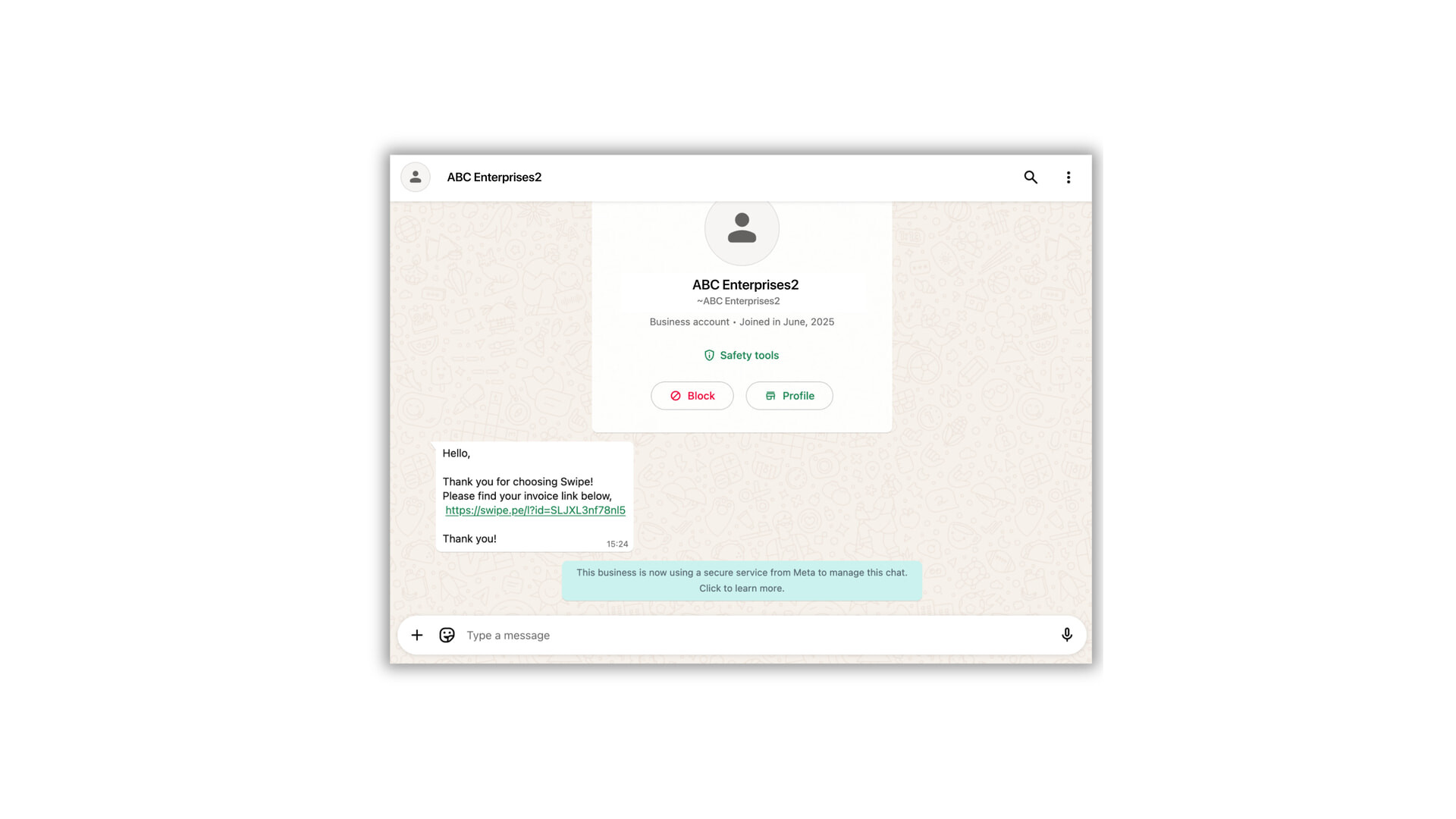
With Wati integration, you can send invoices, payment reminders generated in swipe and run marketing campaigns from your WhatsApp Business Number.
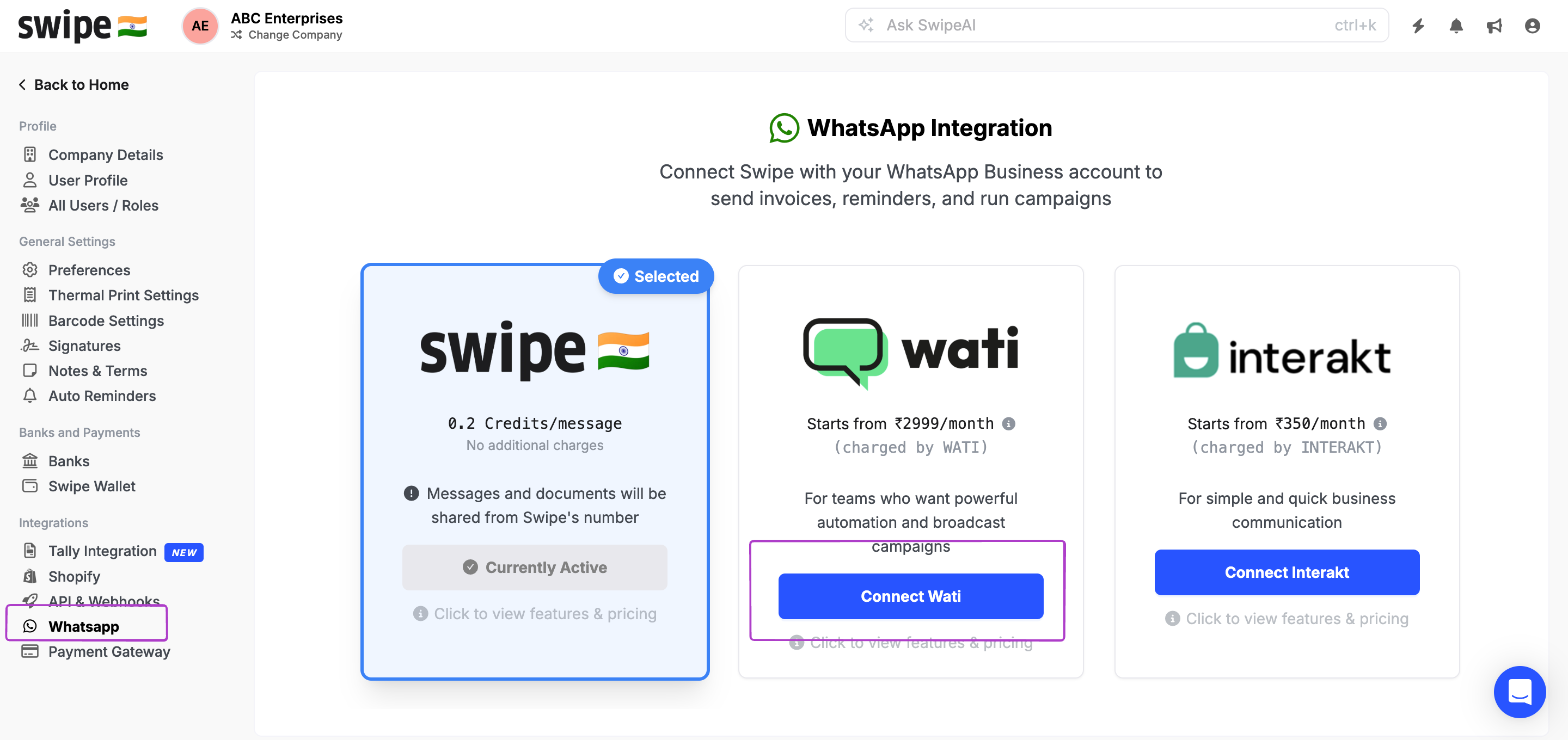
Step 1: Open Swipe and navigate to Settings.
Under the Integration section, select WhatsApp and click on Connect Wati
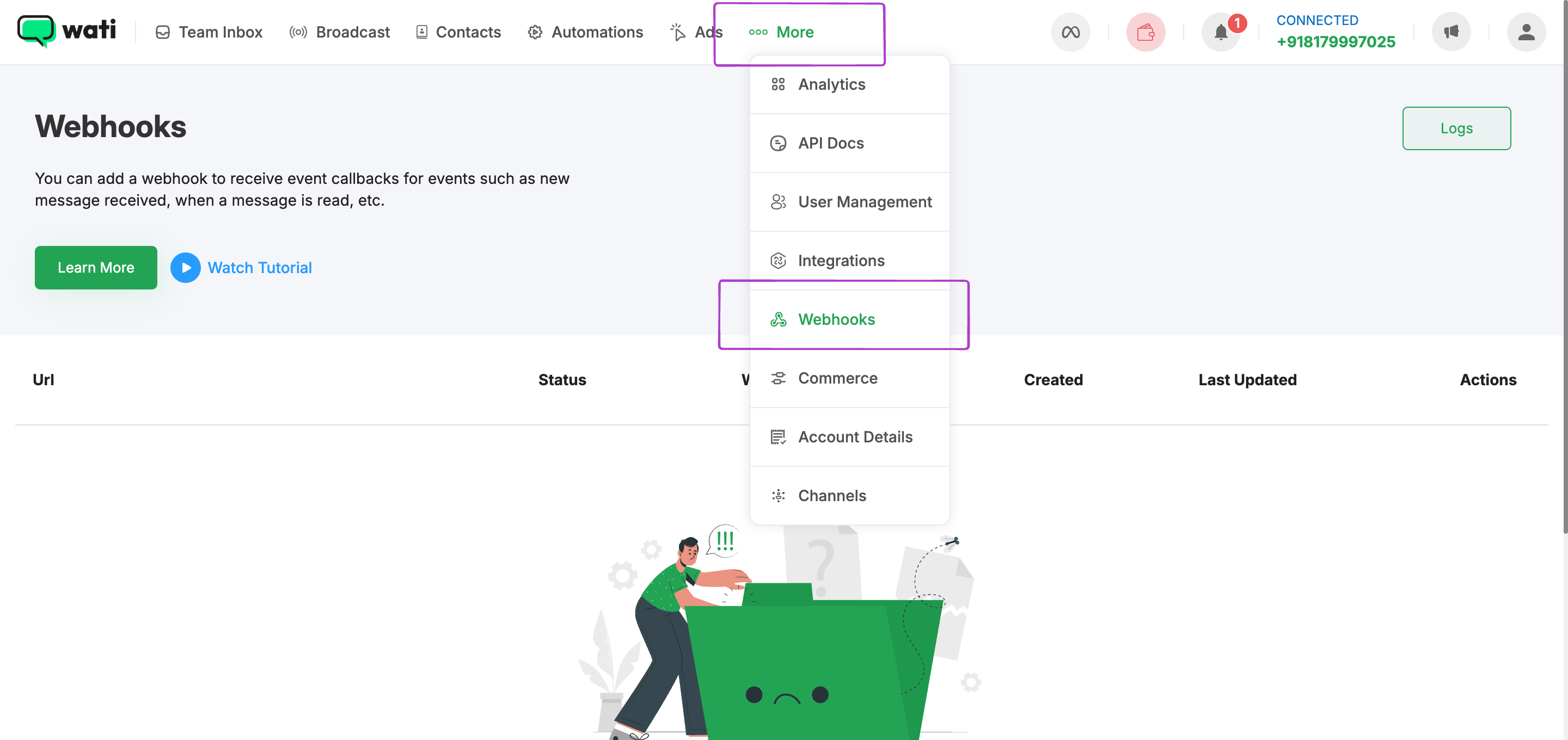
Step 2: Now log in to your Wati dashboard.
Click on More and select API Docs

Step 3: From the API Docs Page, copy the Access Token and API Endpoint. Go back to Swipe and paste Access Token under API Key and API Endpoint under API URL, then click on Create Integration.


Step 4: Once you’ve done that, Swipe will generate a Webhook URL.
Go to More and select Webhooks.
Click on Add Webhooks then Past the URL copied from Swipe and Past in the below mentioned field.
Enable statuses as Template Message Sent v2, Sent Message is DELIVERED v2, Sent Message is READ and Click Save.
This is optional, but recommended for tracking invoice delivery and read status.



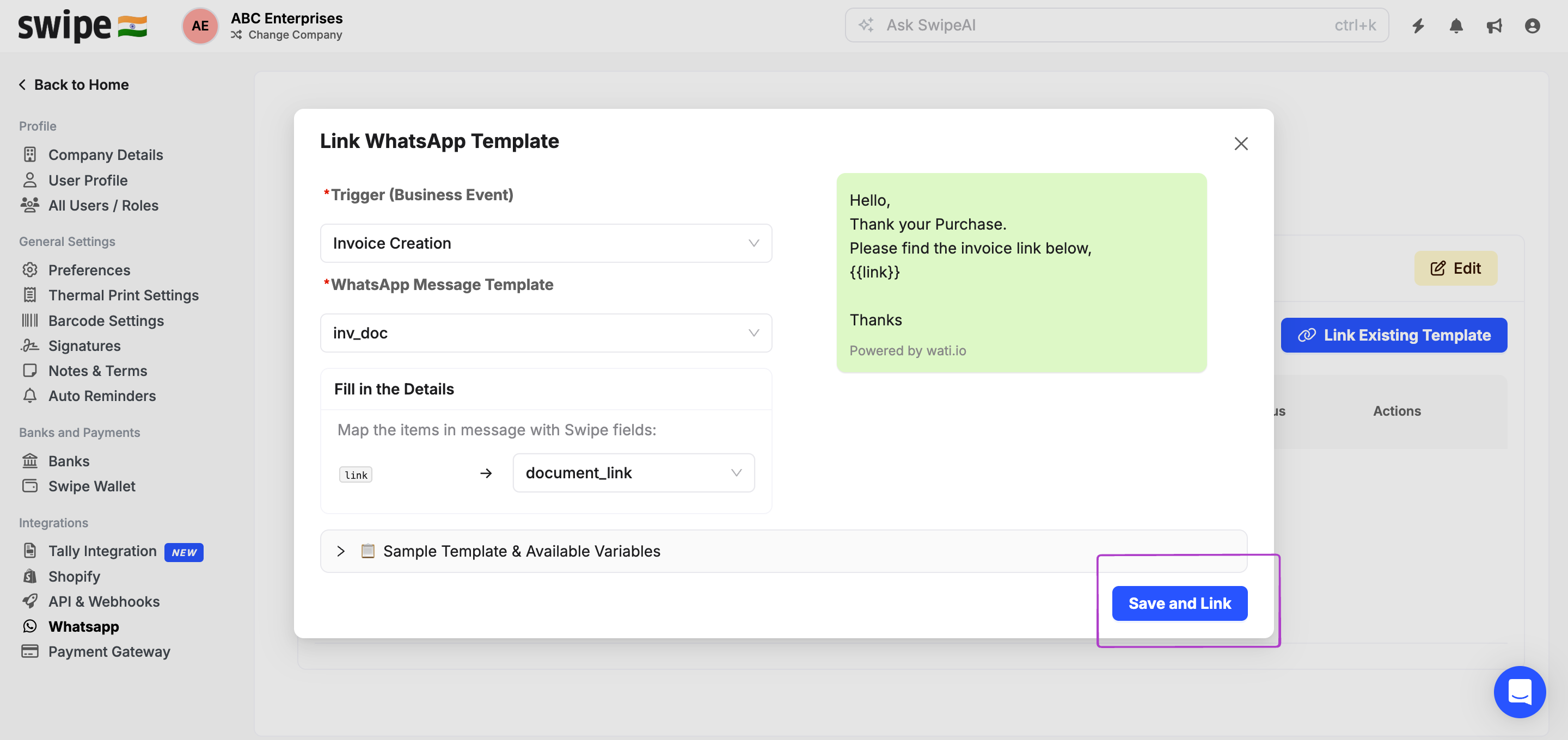
Step 5: Go back to Swipe and open Settings, then WhatsApp Integration. Click on Link Existing Templates, select Invoice Creation under the Trigger(Business Event), and choose the templates you want to link under WhatsApp Message Template for sending Invoices/reminders.
Note: Templates can only be created on Wati.

Step 6: To automate your messaging, go to Settings, then Preferences, select Documents, and under Sales, turn on the option to Auto-send WhatsApp messages. Click Save and Update.
Refer to the article below for the same,
Note: Swipe credits will not be deducted for sending automatic invoices post WhatsApp integration.
Step 7: Now let’s test this out. Create an invoice in Swipe.
As soon as the invoice is created, the WhatsApp message will be automatically sent to the customer.