To create purchase invoices using the upload with AI option, please follow the steps below:
Step 1: Go to Home and click on “Upload with SwipeAI”

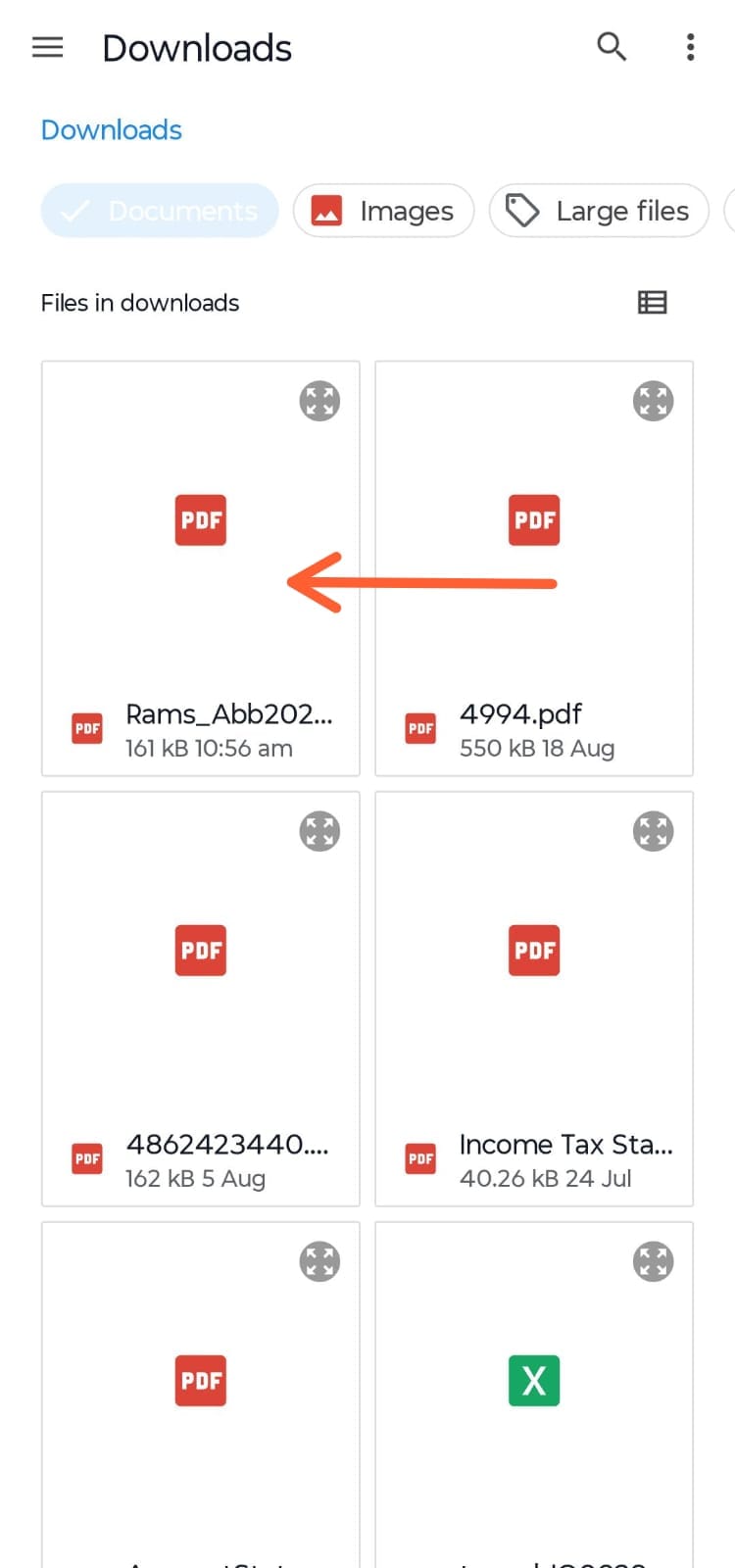
Step 2: Click on the three dots and select your document. Click on Take Photo or Select Files, depending on the requirement.

Step 3: Now, I have selected files and trying to upload one of the purchase invoices.
Step 4: Once the file is selected, the AI will automatically scan the documents and fetch the details. If the item is already added, it will be matched; if not, it will create new items and click on confirm items.


Step 5: Now, click on select vendor.


Step 6: Once verify all the details, click on create.

Now you have successfully created an invoice using the Upload with Swipe AI feature.
Please note: Swipe AI can make mistakes, so please cross-check the details before creating the invoice.