Please follow the steps mentioned below to add addition/deduction charges while uploading invoices in bulk via Excel:
Step 1: Go to “Sales” >> “Invoices” >> Click on “Actions” >> Click on “Bulk Upload”.
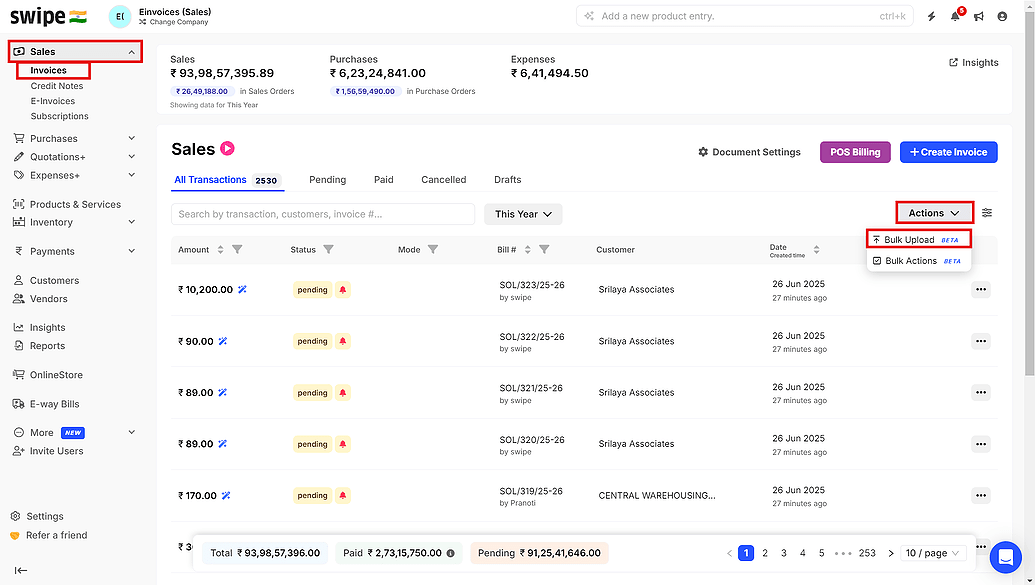
Step 2: Click on “Documents” >> Click on “Select Document Type” >> Select Sales as Document Type.

Step 3: Click on “Download Document Template” >> Save and Open Template.

Step 4: Read the Sample data >> Remove the Sample data before adding your data.
Please Note: “All columns with Red Color are Mandatory”.

Step 5: Fill the sales invoice details and type charge in the Row type column to add an addition/deduction charge in the invoice.

Step 6: Enter the name of the addition/deduction charge and enter its value in the unit price and price with tax column. Please enter the value in negative if it is a deduction charge and enter the value in positive if it is an addition charge.
For example: If it is an addition charge, enter 60 in the price columns
and if it is a deduction charge, enter -60 in the price columns.

Step 7: Enter the invoice total amount accordingly including the additional charge value.

Step 8: Save the Excel file after the filling in the necessary details.
Step 9: Upload the saved file in Swipe.

Please Note:
1. This feature is available only in Web version.
2. “This feature is an Add-On feature and is currently in beta version and only allows for the uploading of new documents. If you would like to avail this feature, you can reach out to support by clicking on the link below”-