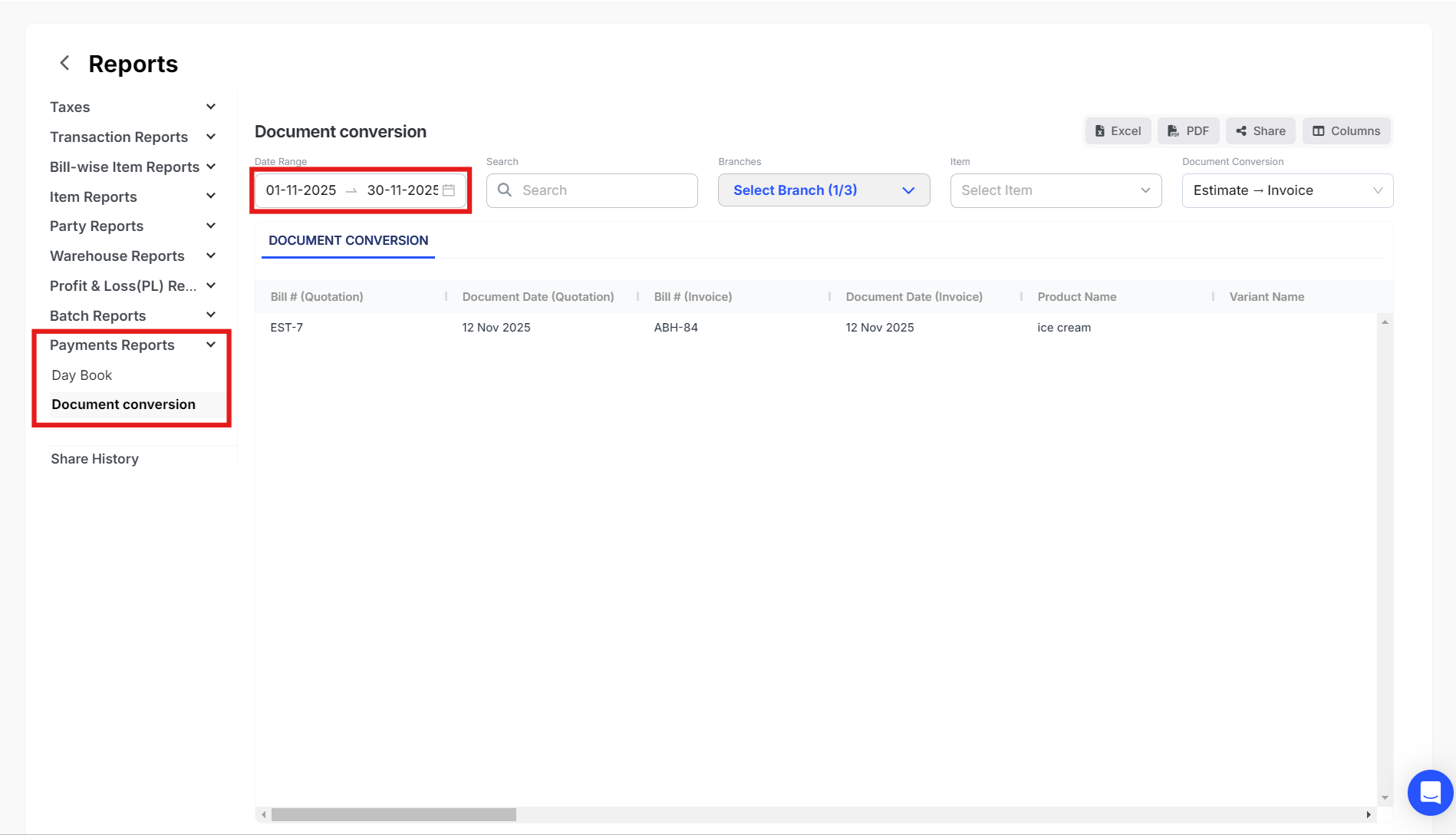
The Document Conversion Report in Swipe shows how many of your documents, like quotations or pro forma, were successfully converted into invoices. It helps you easily track your sales progress.
To view/download the document conversion report in Swipe, please follow the below-mentioned steps.
Step 1. Click on Reports from the home page.
Step 2. Below Payment Reports Click on Document Conversion and select the Date Range.
Step 3. Click on Document Conversion and select the concerned conversion you are looking for.
Step 4. Click on ‘Columns’ and select the options that you are looking for.
Click on Excel or PDF to download the report in the format you require.
Please Note:
This report will only be visible if at least one of these conversion tracking settings is turned ON.
Please follow the steps mentioned in the article below to turn on the conversion tracking setting :
To convert quotation to sales invoice, please follow the below mentioned steps:
Step 1: Go to Quotations >> Click on three dots for the quotation which you want to convert to sales.
Now click on Convert and click on Convert to Sales.
[image]
Step 2: This will redirect you to sales invoice page, click on save.
[image]
To convert Sales order into Sales invoice, please follow the steps below,
Step 1: Please click on “Sales order” under Quotations section, and click on “More” option (…) of the sales order you want too convert.
[image]
Step 2: Click on “Convert” and select “Convert to Sales”.
[image]
Step 3: Check the necessary details and click on “Save” button.
[image]
Sales order will be converted to Sales invoice, and the Sales order status will be shown as closed.
[image]
To convert pro forma invoice to sales invoice, please follow below mentioned steps:
Step 1: Click on Pro Forma Invoice under Quotations then Click on three dots for the pro forma invoice which you want to convert to sales.
Now, click on Convert and convert to Sales.
[image]
Step 2: Click on Save.
[image]
To convert purchase order invoice to purchase invoice,please follow step mentioned below:
Step 1: Click on Purchase order under Purchases.
Step 2: Click on three dots (the purchase order to which you want to convert to purchase) now, click on Convert and Convert to Purchase and Save.
[purchase order]