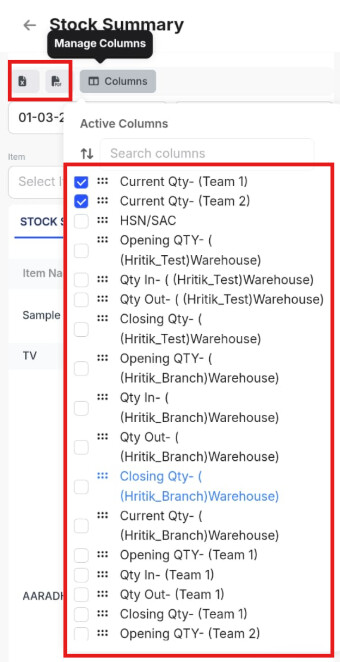
To check Warehouse-wise Stock Summary report on mobile application, please follow the below mentioned steps:
Step 1 : Go to Reports.

Step 2 : Click on Stock Summary under Warehouse Reports.

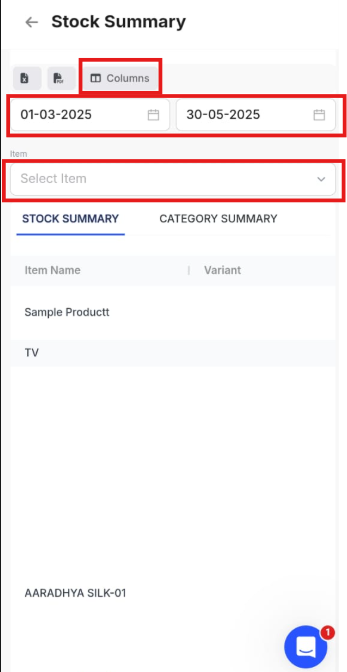
Step 3 : Apply the Date Range >> Click on Columns.
Note : You can also select the item name if you want to check for one particular item.
Step 4: Select the Required Columns >> Click on Excel/PDF icon to download the report.
Note : You can select the warehouse-wise column to check warehouse closing qty, opening qty, qty in, and qty out.